tutorial: jack and kate
Jul. 19th, 2011 05:17 pm![[identity profile]](https://www.dreamwidth.org/img/silk/identity/openid.png) longerthanwedo.livejournal.com posting in
longerthanwedo.livejournal.com posting in ![[community profile]](https://www.dreamwidth.org/img/silk/identity/community.png) vividimagery
vividimageryTutorial for this icon:

requested by![[livejournal.com profile]](https://www.dreamwidth.org/img/external/lj-userinfo.gif) calin_durus
calin_durus
For this icon I used five separate, previously colored caps, which, unfortunately, I don't have the originals of anymore since I saved over them after I edited them for tumblr. However, the coloring is fairly simple and I'll explain as best I can without actually going through the motions myself. If the individual caps show up as looking kind of funny, aspect ratio wise, I'm not sure how to fix that; LJ likes to squish things in my layout.

- base layer, cropped to 500px width (cropping is up to you though, if you want to work smaller to begin with that's fine)
- duplicated base layer set to screen (number of screen layers and opacity vary with values in cap)
- duplicated again, set to soft light over screen layer
- vibrancy layer, 60-100
- white to black horizontal linear gradient (layer NOT map) set to soft light over everything

- base layer
- duplicated, set to screen
- duplicated, set to soft light
- #522c1b to #7cc576 gradient map set to soft light 


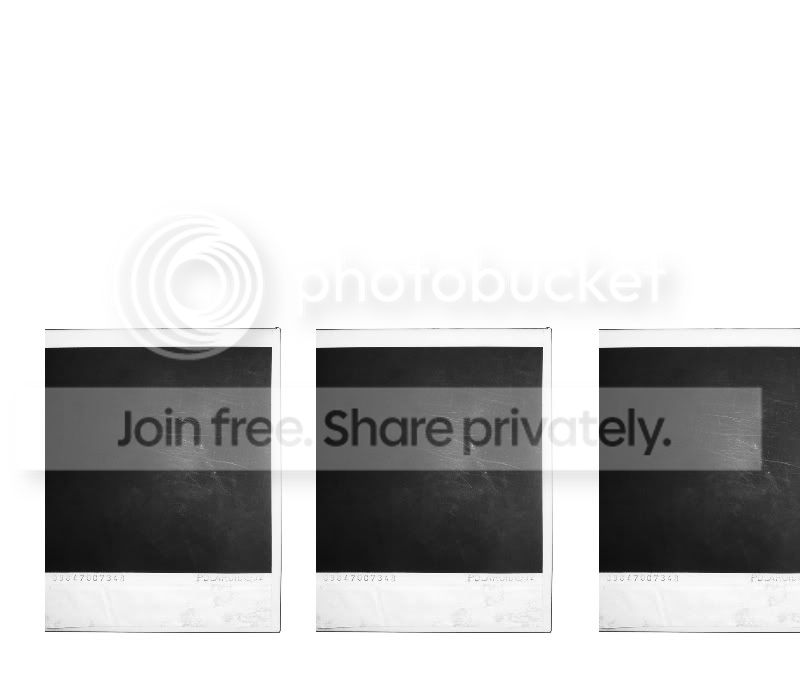
Now that's not the most attractive or interesting composition and obviously I needed something in the middle, so I looked through my gigantic folder of large textures to find something to take up that space. I ended up using this frame texture (maker unknown) set to screen on top of the two caps. Left alone it looks like this:

Which actually looks cool, except that I want a Jack/Kate graphic, not just Jack. So I resized the texture and cut off the majority of the white to the top and bottom of the frames, so that the frames span the middle of the graphic without cutting off much of either cap and so that the middle frame is more or less centered in the canvas.

Now I just need something to fill the frames, so I take the remaining three caps and paste them underneath the frame texture, resizing them to fit in the frames and flipping the Jack cap horizontally so his face will better fit inside the texture. Then I add one more texture over the top of all that to give the entire thing a, well, texture, as well as lighten the shadows (adjusting opacity as much as needed. Fairly low for this graphic). Now we have the finished graphic: 
And then all that's left to do is crop! I didn't add any extra textures or colors after I cropped the graphic to 100x100px, so here's the finished product:
And that's it! If something there didn't make sense let me know. Enjoy
requested by
calin_durus For this icon I used five separate, previously colored caps, which, unfortunately, I don't have the originals of anymore since I saved over them after I edited them for tumblr. However, the coloring is fairly simple and I'll explain as best I can without actually going through the motions myself. If the individual caps show up as looking kind of funny, aspect ratio wise, I'm not sure how to fix that; LJ likes to squish things in my layout.
- base layer, cropped to 500px width (cropping is up to you though, if you want to work smaller to begin with that's fine)
- duplicated base layer set to screen (number of screen layers and opacity vary with values in cap)
- duplicated again, set to soft light over screen layer
- vibrancy layer, 60-100
- white to black horizontal linear gradient (layer NOT map) set to soft light over everything
- base layer
- duplicated, set to screen
- duplicated, set to soft light
- #522c1b to #7cc576 gradient map set to soft light
- white to black gradient layer set to soft light
- base layer
- duplicated, set to screen (twice for this cap, I believe)
- duplicated, set to soft light
- black to white gradient map set to normal
- white to black gradient layer set to soft light
- base layer
- duplicated, set to screen x2
- duplicated, set to soft light
- #522c1b to #a07d0c gradient map set to soft light
- vibrancy layer at 100

- vibrancy layer at 100
- base layer
- duplicated, set to screen
- duplicated, set to soft light
- vibrancy layer at 60-80
- white to black gradient layer
Now, this particular icon started out as a larger, tumblr-sized graphic, so I'll walk through that process and how it turned into an icon. First I set up a 500x600px canvas with a black fill, then I paste in the larger caps (the top one of Kate and the bottom of Jack), and it looks like this:
Now that's not the most attractive or interesting composition and obviously I needed something in the middle, so I looked through my gigantic folder of large textures to find something to take up that space. I ended up using this frame texture (maker unknown) set to screen on top of the two caps. Left alone it looks like this:
Which actually looks cool, except that I want a Jack/Kate graphic, not just Jack. So I resized the texture and cut off the majority of the white to the top and bottom of the frames, so that the frames span the middle of the graphic without cutting off much of either cap and so that the middle frame is more or less centered in the canvas.
And then all that's left to do is crop! I didn't add any extra textures or colors after I cropped the graphic to 100x100px, so here's the finished product:
And that's it! If something there didn't make sense let me know. Enjoy


![[personal profile]](https://www.dreamwidth.org/img/silk/identity/user.png)